# Simulation
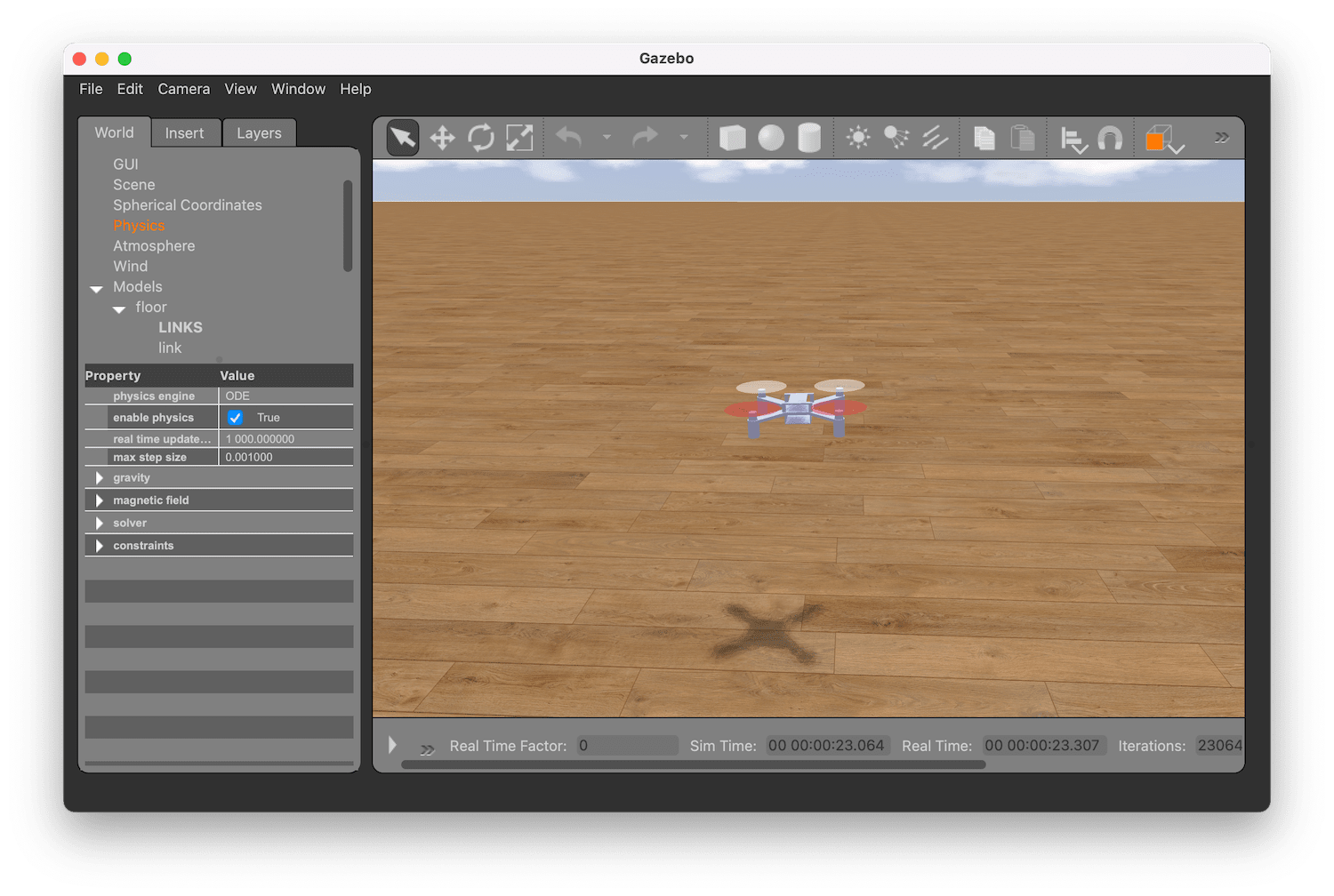
The Flix drone simulator is based on Gazebo 11 and runs the firmware code in virtual physical environment.
Gazebo 11 works on **Ubuntu 20.04** and used to work on macOS. However, on the recent macOS versions it seems to be broken, so Ubuntu 20.04 is recommended.
 ## Installation
1. Clone the Flix repository using it:
```bash
git clone https://github.com/okalachev/flix.git && cd flix
```
2. Install Arduino CLI:
```bash
curl -fsSL https://raw.githubusercontent.com/arduino/arduino-cli/master/install.sh | BINDIR=~/.local/bin sh
```
3. Install Gazebo 11:
```bash
sudo sh -c 'echo "deb http://packages.osrfoundation.org/gazebo/ubuntu-stable `lsb_release -cs` main" > /etc/apt/sources.list.d/gazebo-stable.list'
wget https://packages.osrfoundation.org/gazebo.key -O - | sudo apt-key add -
sudo apt-get update
sudo apt-get install -y gazebo11 libgazebo11-dev
```
Set up your Gazebo environment variables:
```bash
echo "source /usr/share/gazebo/setup.sh" >> ~/.bashrc
source ~/.bashrc
```
4. Install SDL2 and other dependencies:
```bash
sudo apt-get update && sudo apt-get install build-essential libsdl2-dev
```
5. Add your user to the `input` group to enable joystick support (you need to re-login after this command):
```bash
sudo usermod -a -G input $USER
```
6. Run the simulation:
```bash
make simulator
```
## Usage
Just like the real drone, the simulator can be controlled using a USB remote control or a smartphone.
### Control with smartphone
1. Install [QGroundControl mobile app](https://docs.qgroundcontrol.com/master/en/qgc-user-guide/getting_started/download_and_install.html#android) on your smartphone. For **iOS**, use [QGroundControl build from TAJISOFT](https://apps.apple.com/ru/app/qgc-from-tajisoft/id1618653051).
2. Connect your smartphone to the same Wi-Fi network as the machine running the simulator.
3. If you're using a virtual machine, make sure that its network is set to the **bridged** mode with Wi-Fi adapter selected.
4. Run the simulation.
5. Open QGroundControl app. It should connect and begin showing the virtual drone's telemetry automatically.
6. Go to the settings and enable *Virtual Joystick*. *Auto-Center Throttle* setting **should be disabled**.
7. Use the virtual joystick to fly the drone!
### Control with USB remote control
1. Connect your USB remote control to the machine running the simulator.
2. Run the simulation.
3. Calibrate the RC using `cr` command in the command line interface.
4. Use the USB remote control to fly the drone!
### Piloting
To start the flight, arm the drone moving the throttle stick to the bottom right position:
## Installation
1. Clone the Flix repository using it:
```bash
git clone https://github.com/okalachev/flix.git && cd flix
```
2. Install Arduino CLI:
```bash
curl -fsSL https://raw.githubusercontent.com/arduino/arduino-cli/master/install.sh | BINDIR=~/.local/bin sh
```
3. Install Gazebo 11:
```bash
sudo sh -c 'echo "deb http://packages.osrfoundation.org/gazebo/ubuntu-stable `lsb_release -cs` main" > /etc/apt/sources.list.d/gazebo-stable.list'
wget https://packages.osrfoundation.org/gazebo.key -O - | sudo apt-key add -
sudo apt-get update
sudo apt-get install -y gazebo11 libgazebo11-dev
```
Set up your Gazebo environment variables:
```bash
echo "source /usr/share/gazebo/setup.sh" >> ~/.bashrc
source ~/.bashrc
```
4. Install SDL2 and other dependencies:
```bash
sudo apt-get update && sudo apt-get install build-essential libsdl2-dev
```
5. Add your user to the `input` group to enable joystick support (you need to re-login after this command):
```bash
sudo usermod -a -G input $USER
```
6. Run the simulation:
```bash
make simulator
```
## Usage
Just like the real drone, the simulator can be controlled using a USB remote control or a smartphone.
### Control with smartphone
1. Install [QGroundControl mobile app](https://docs.qgroundcontrol.com/master/en/qgc-user-guide/getting_started/download_and_install.html#android) on your smartphone. For **iOS**, use [QGroundControl build from TAJISOFT](https://apps.apple.com/ru/app/qgc-from-tajisoft/id1618653051).
2. Connect your smartphone to the same Wi-Fi network as the machine running the simulator.
3. If you're using a virtual machine, make sure that its network is set to the **bridged** mode with Wi-Fi adapter selected.
4. Run the simulation.
5. Open QGroundControl app. It should connect and begin showing the virtual drone's telemetry automatically.
6. Go to the settings and enable *Virtual Joystick*. *Auto-Center Throttle* setting **should be disabled**.
7. Use the virtual joystick to fly the drone!
### Control with USB remote control
1. Connect your USB remote control to the machine running the simulator.
2. Run the simulation.
3. Calibrate the RC using `cr` command in the command line interface.
4. Use the USB remote control to fly the drone!
### Piloting
To start the flight, arm the drone moving the throttle stick to the bottom right position:
 To disarm, move the throttle stick to the bottom left position:
 See other piloting and usage details in general [usage article](../docs/usage.md).
## Code structure
Flix simulator consists of the following components:
* Physical model of the drone in Gazebo format: [`models/flix/flix.sdf`](models/flix/flix.sdf).
* Plugin for Gazebo: [`simulator.cpp`](simulator.cpp). The plugin is attached to the physical model. It receives stick positions from the controller, gets the data from the virtual sensors, and then passes this data to the Arduino code.
* Arduino emulation: [`Arduino.h`](Arduino.h). This file contains partial implementation of the Arduino API, that is working within Gazebo plugin environment.
See other piloting and usage details in general [usage article](../docs/usage.md).
## Code structure
Flix simulator consists of the following components:
* Physical model of the drone in Gazebo format: [`models/flix/flix.sdf`](models/flix/flix.sdf).
* Plugin for Gazebo: [`simulator.cpp`](simulator.cpp). The plugin is attached to the physical model. It receives stick positions from the controller, gets the data from the virtual sensors, and then passes this data to the Arduino code.
* Arduino emulation: [`Arduino.h`](Arduino.h). This file contains partial implementation of the Arduino API, that is working within Gazebo plugin environment.